Get Microsoft Edge for Mac
Dòigh brabhsaidh nas tapaidhe
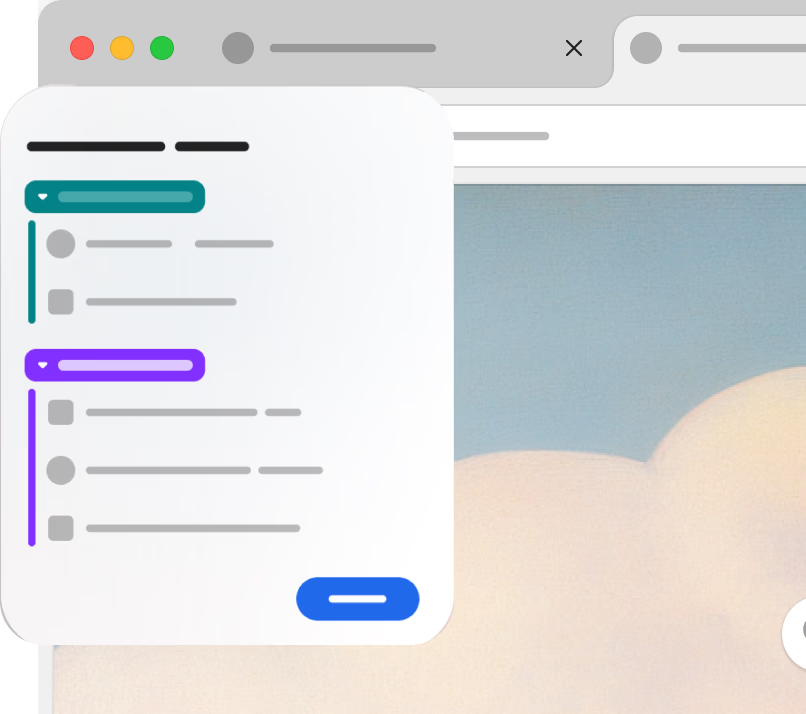
Introducing Copilot Mode in Edge
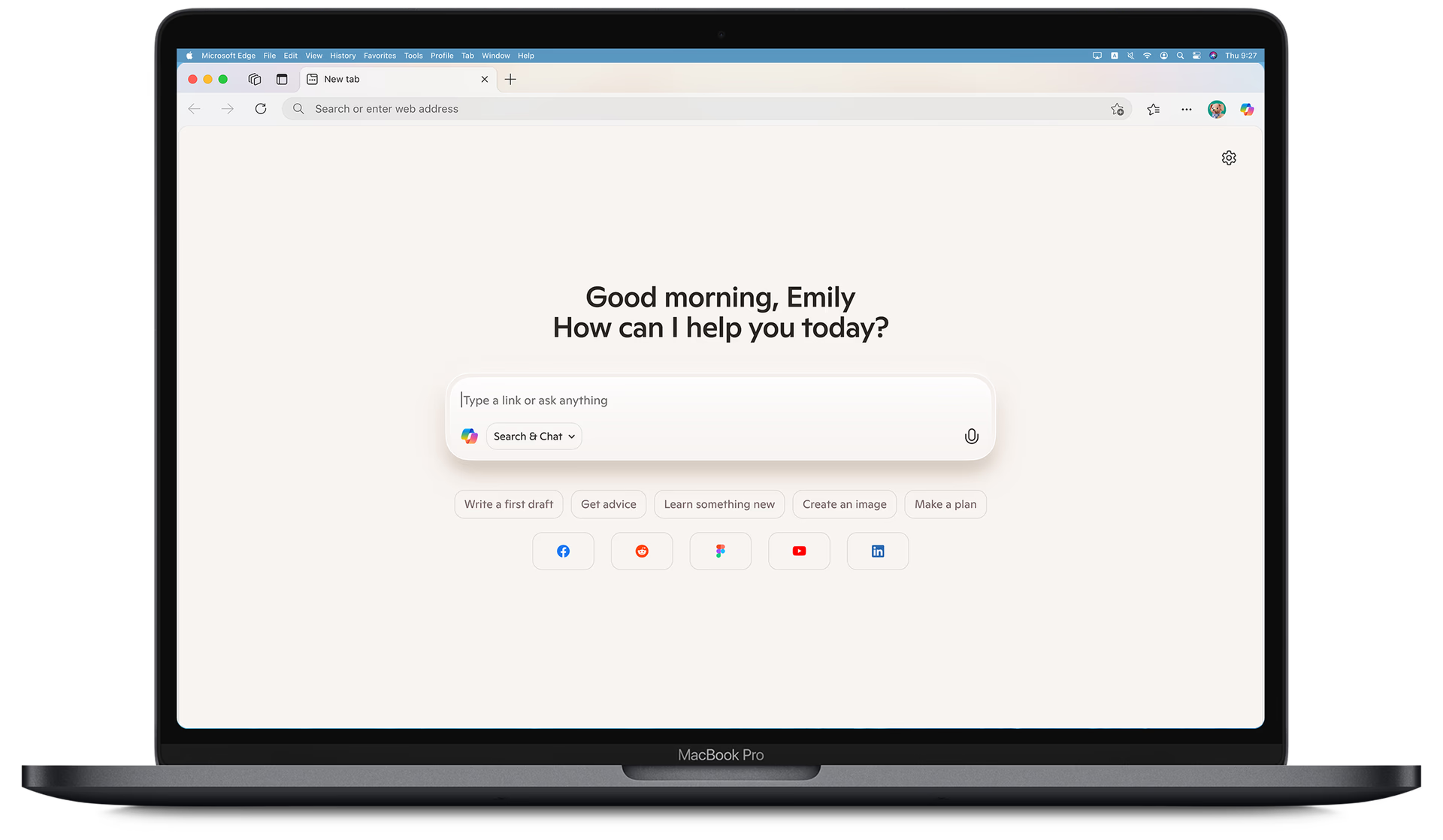
Copilot Mode is a new way to browse in Microsoft Edge that puts helpful AI features right at your fingertips. It helps you stay focused, cut through clutter, and get things done faster—while keeping you in control every step of the way.


Quick assist
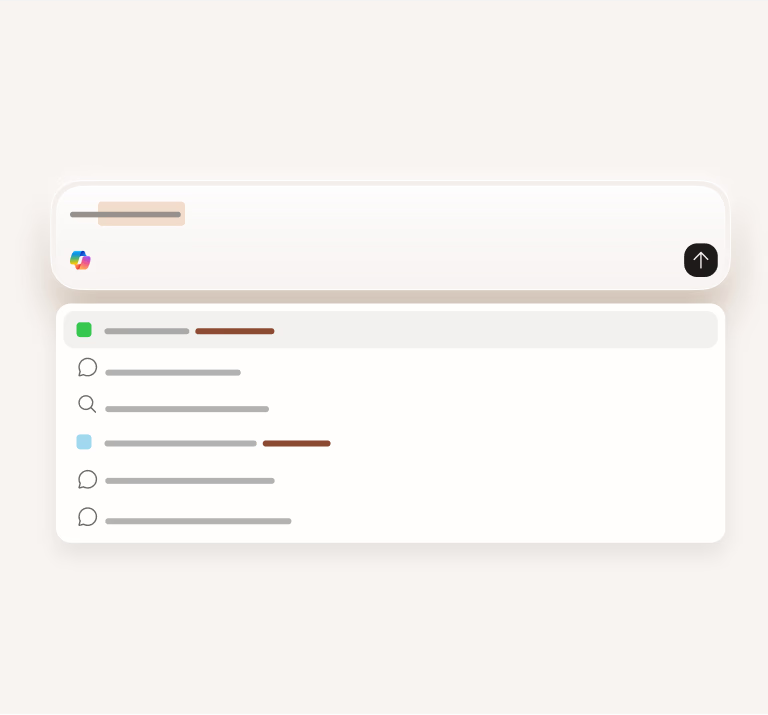
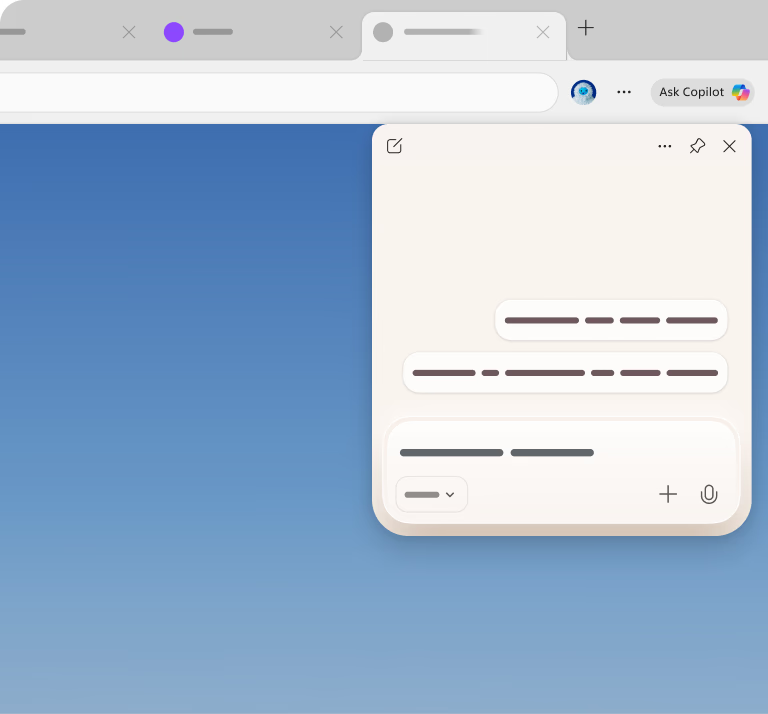
Get quick answers with a browsing companion that's always within reach.

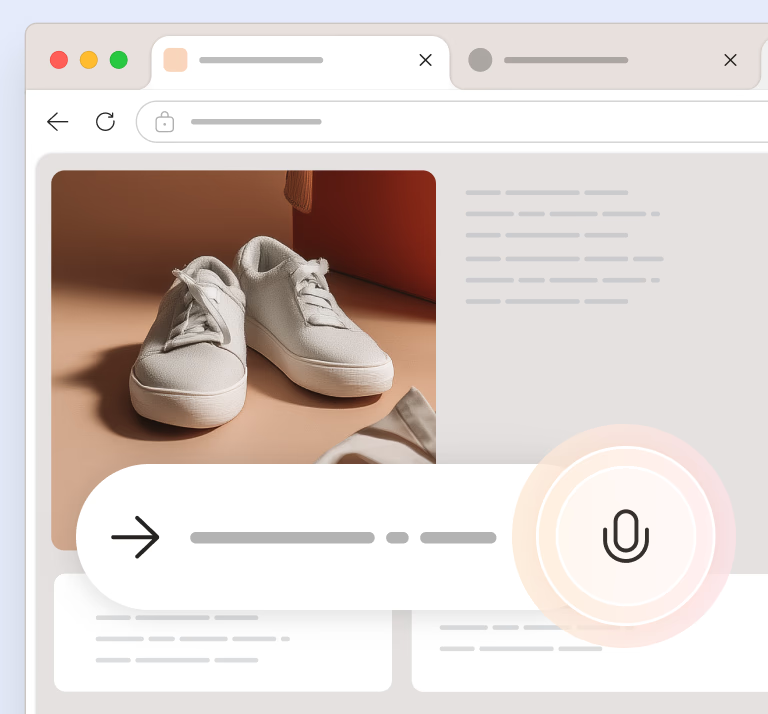
Voice navigation
Browse with your voice — just tell Copilot where to go.

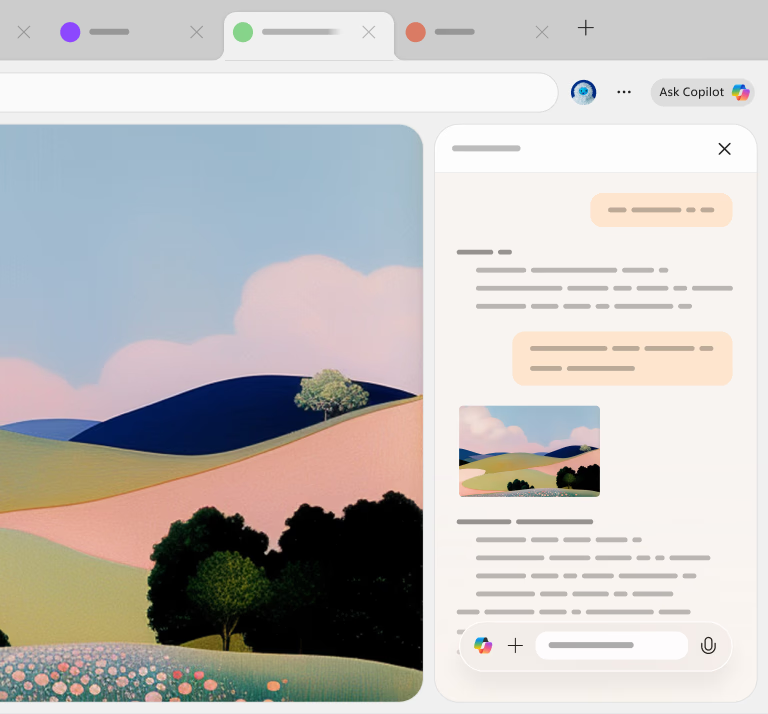
Co-theacsa ioma-tab
Evaluate content across tabs and get more relevant responses.
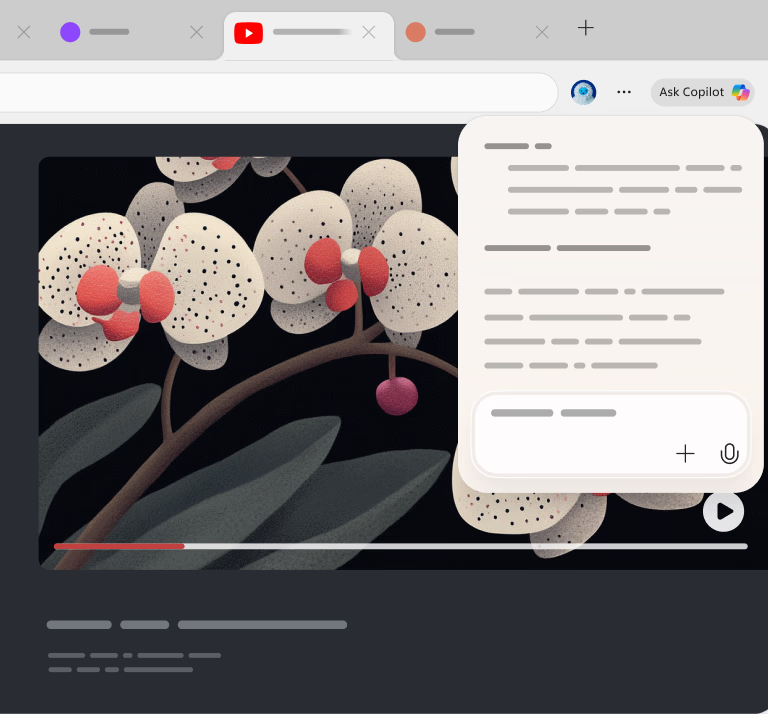
Copilot Vision — a new way to browse
Le Copilot Vision, chì Copilot an sgrìn agad agus is urrainn dha sganadh is anailis a dhèanamh air sa bhad agus molaidhean a thoirt dhut a rèir na th’ air an sgrìn agad.
Explore even more
AI innovations in Microsoft Edge

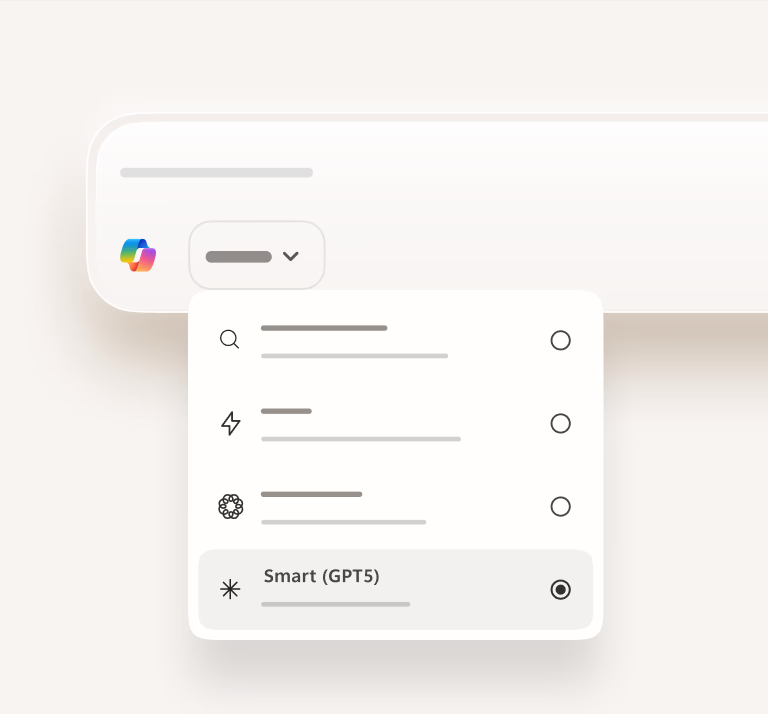
Glic (GPT-5)
GPT-5 is now in Edge. Try it to experience the future of AI-powered productivity.

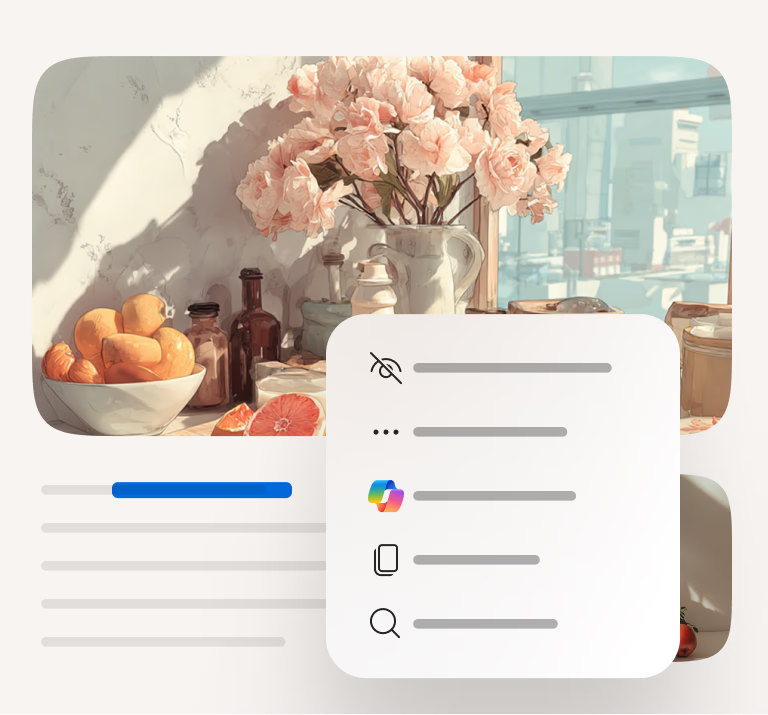
Faighnich do Cho-phìleat
Highlight and ask—get instant answers without breaking your flow.

Real-time video translation
Understand global content with real-time translated audio.
Built for Mac
Powered by Edge

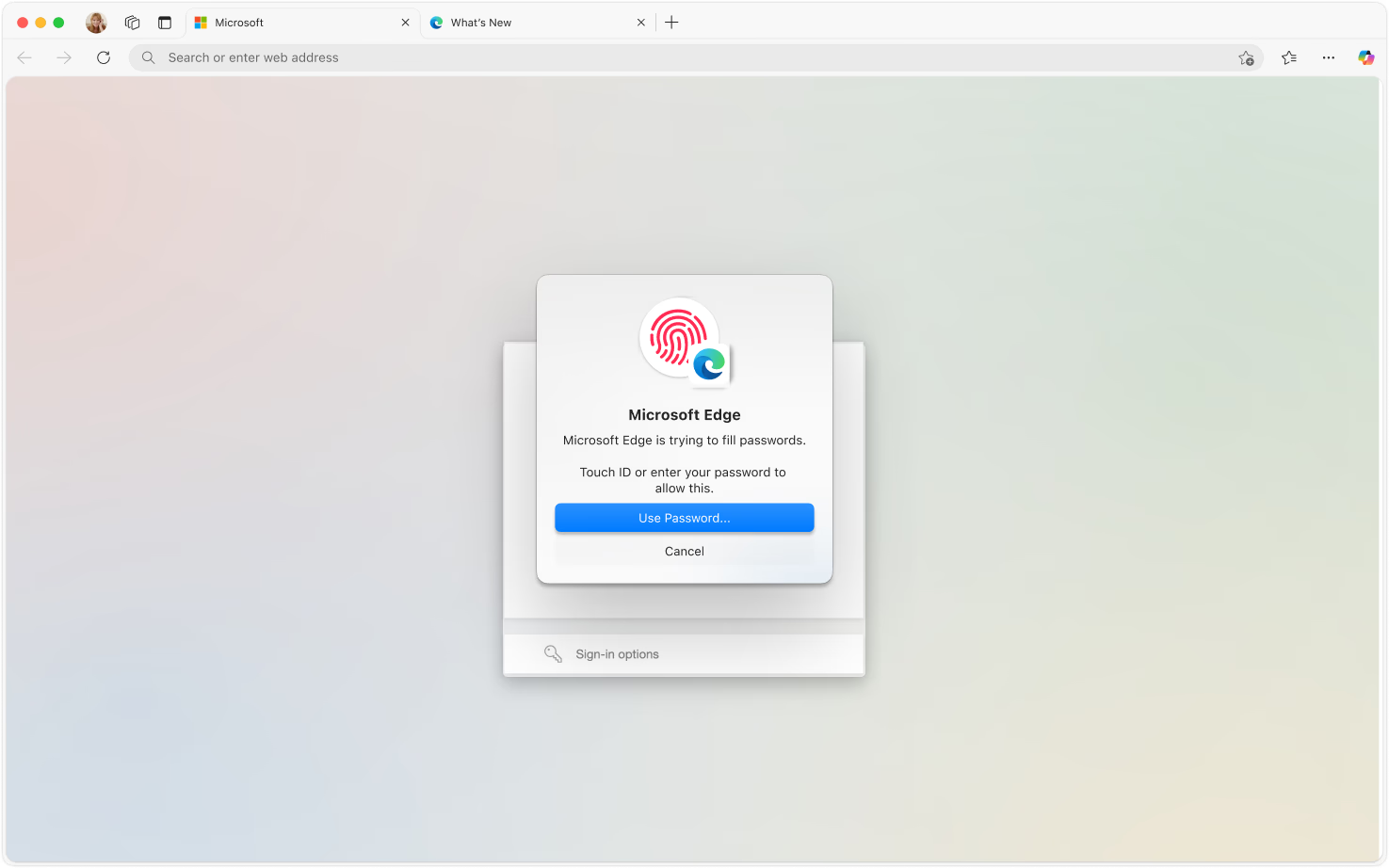
Feels native on Mac
Seamlessly integrate with your Mac's favorite features. From Spotlight search to Touch ID login, Edge feels right at home on your MacBook.

Speaks your Mac's language
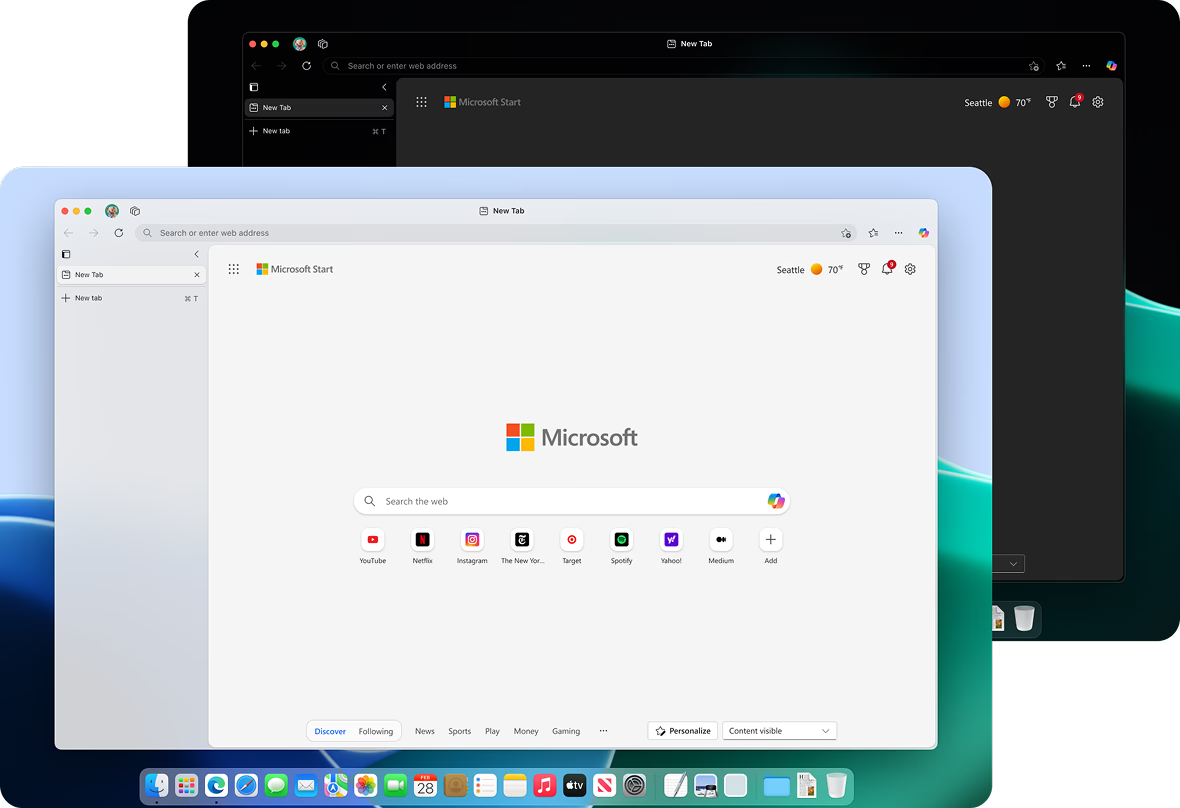
Enjoy a browsing experience that feels right at home on your Mac — from smooth trackpad gestures to refined visuals that blend seamlessly with macOS.
Do more with Edge
Microsoft Edge is your AI-powered browser that helps you achieve more. With unique features like Copilot, Vertical tabs, VPN and more, Edge helps you save time, save money and protect your online privacy.


Caomhain ùine air loidhne le Copilot ann an Edge. Seo gleus le cumhachd AI a chuidicheas ach an dèan thu barrachd na shaoileadh tu ’s a gheibh thu sa bhrabhsair agad fhèin.
Bidh am brabhsadh nas èifeachdaiche leis na tabaichean inghearach air Microsoft Edge. Gluaisidh tabaichean a’ bhrabhsair on bhàrr gu taobh na sgrìn ach an aithnich thu na tabaichean agad nas fheàrr ’s ach am faigh thu barrachd àite air an sgrìn.
Dìon do ghnìomhachd air loidhne o shealladh poblach, dèan brabhsadh leis a’ VPN a thig an cois Microsoft Edge nuair a bhios tu air lìonra poblach.
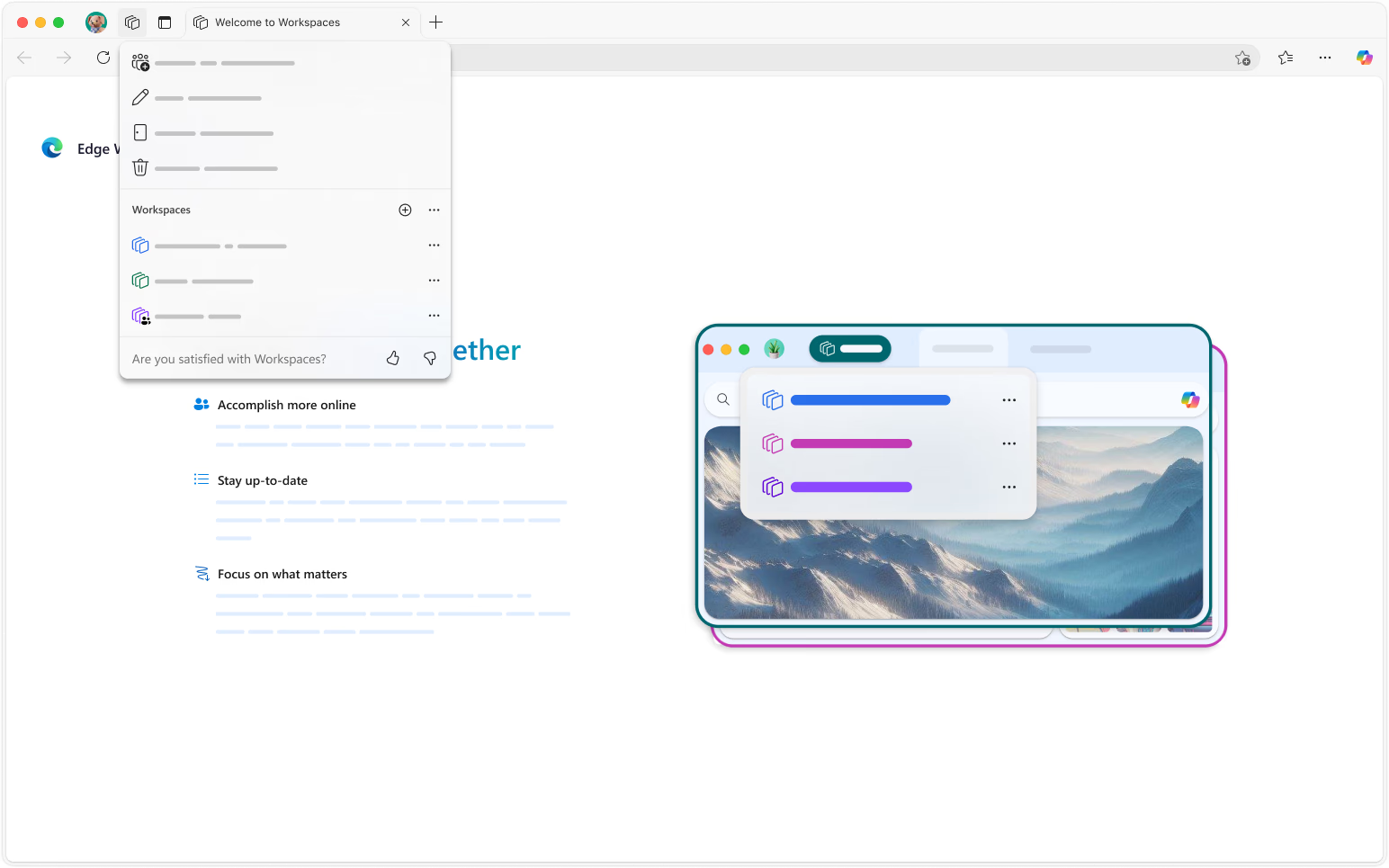
Organize your browsing with Workspaces in Microsoft Edge. Group related tabs into workspaces, making it easier to switch between projects and keep your browser clutter-free.
Easily share files and notes with Drop in Microsoft Edge. Send content between your devices seamlessly, ensuring you always have access to your important information.
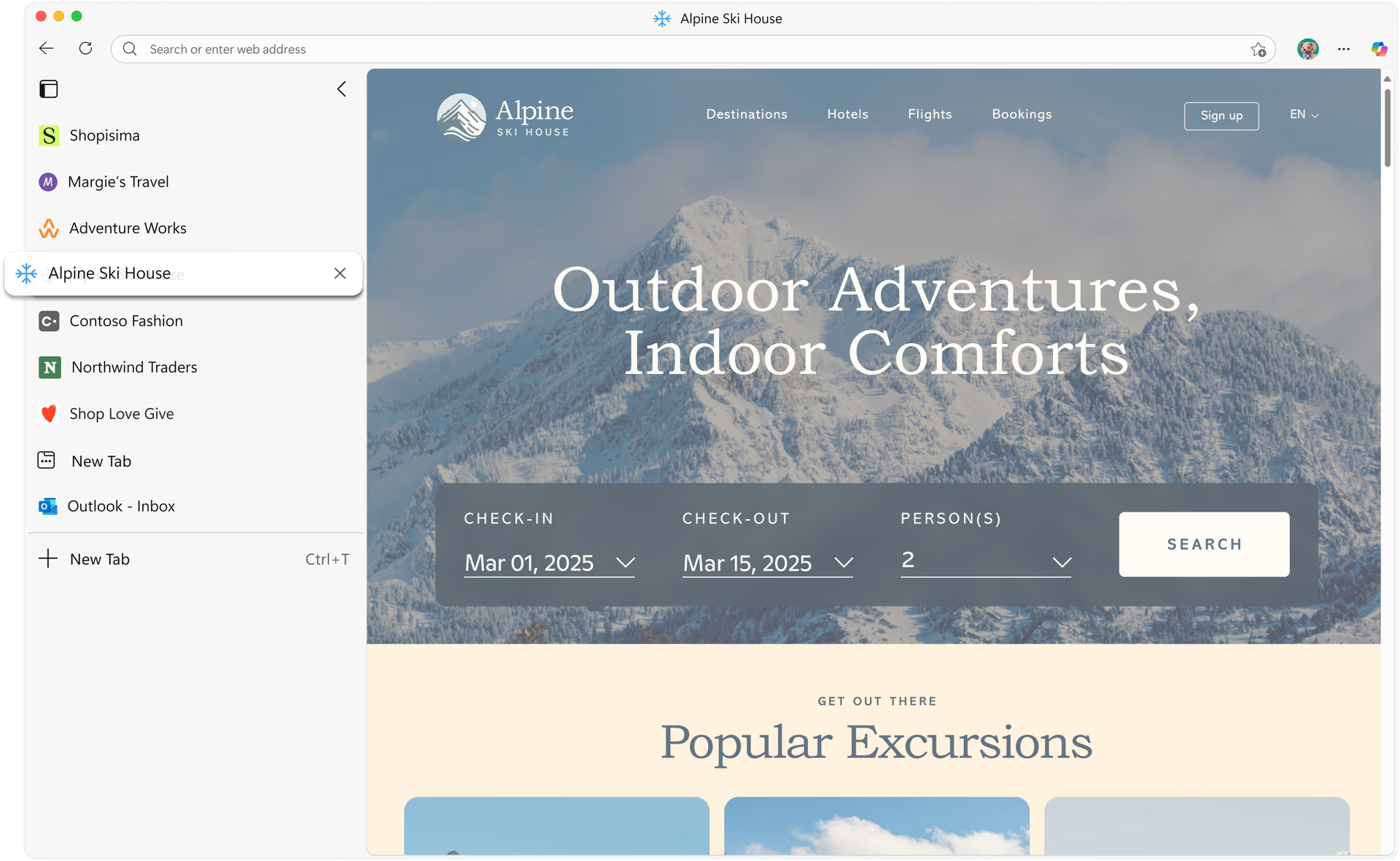
Master your tabs with ease
Maximize your screen space with Edge’s vertical tabs. Automatically group similar tabs to stay organized and enhance your productivity effortlessly.

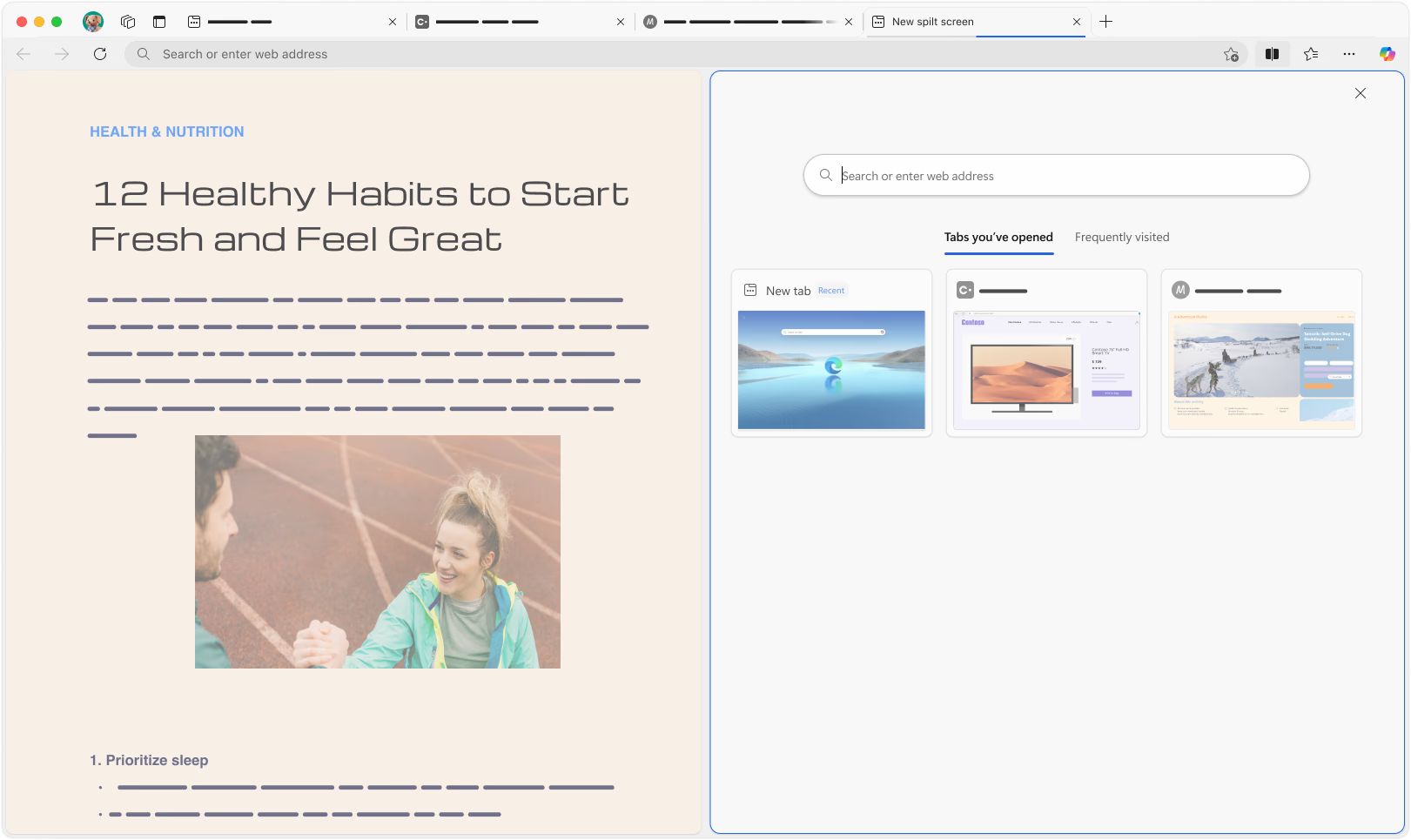
Easy multitasking with Split Screen
Instantly view two sites side-by-side with one click – perfect for comparing prices, cross-referencing research, or taking notes while watching content.

Customize your browser with Extensions
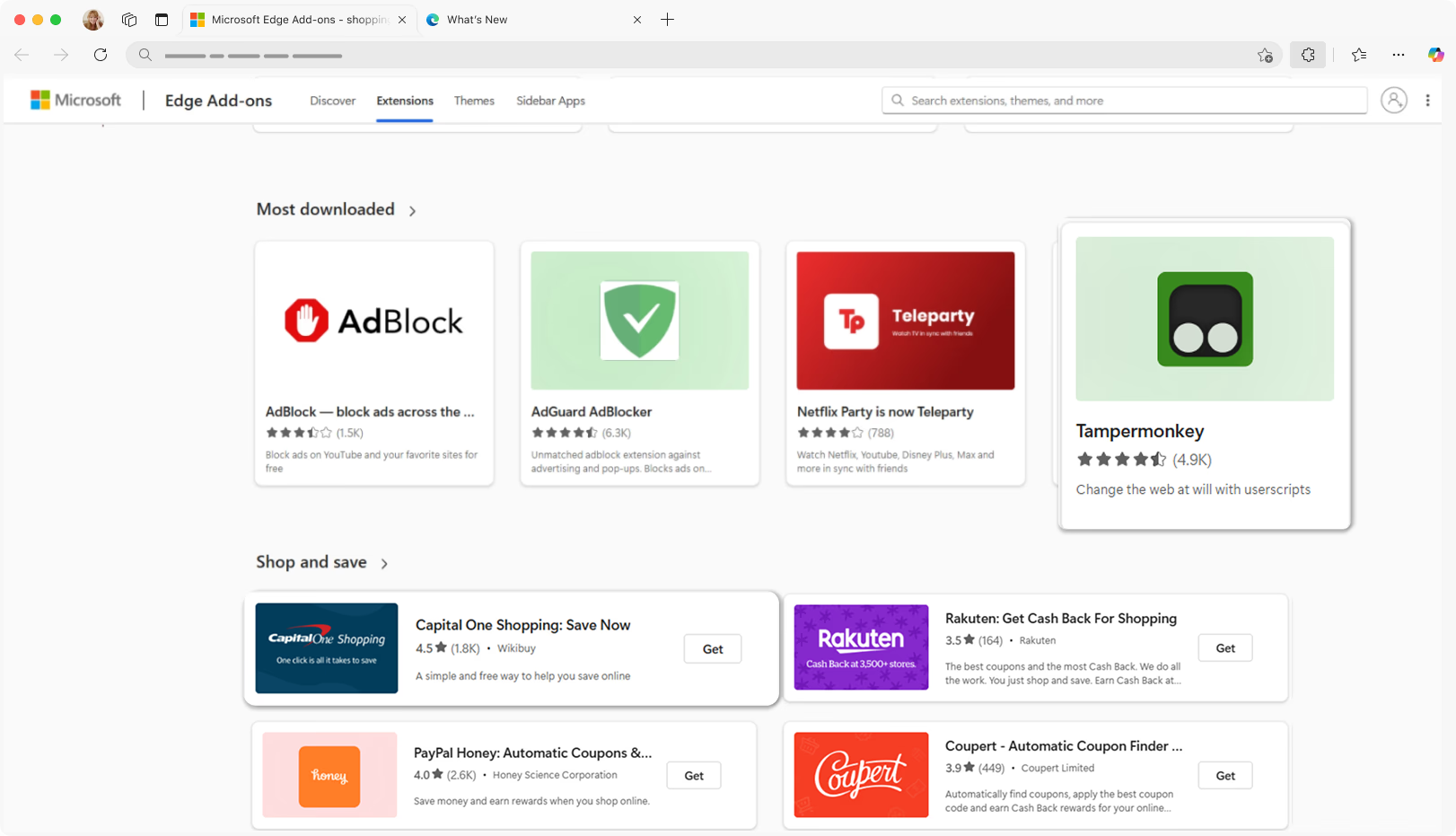
Discover a variety of extensions on Microsoft Edge for Mac designed to make your browsing easier, more seamless, and tailored to your needs.

Cùm rian air rudan le spàsan-obrach
Create dedicated groups for your tasks, keeping personal, work, and creative projects separate and organized—all in one browser.

Instant Screenshots on Mac with Edge

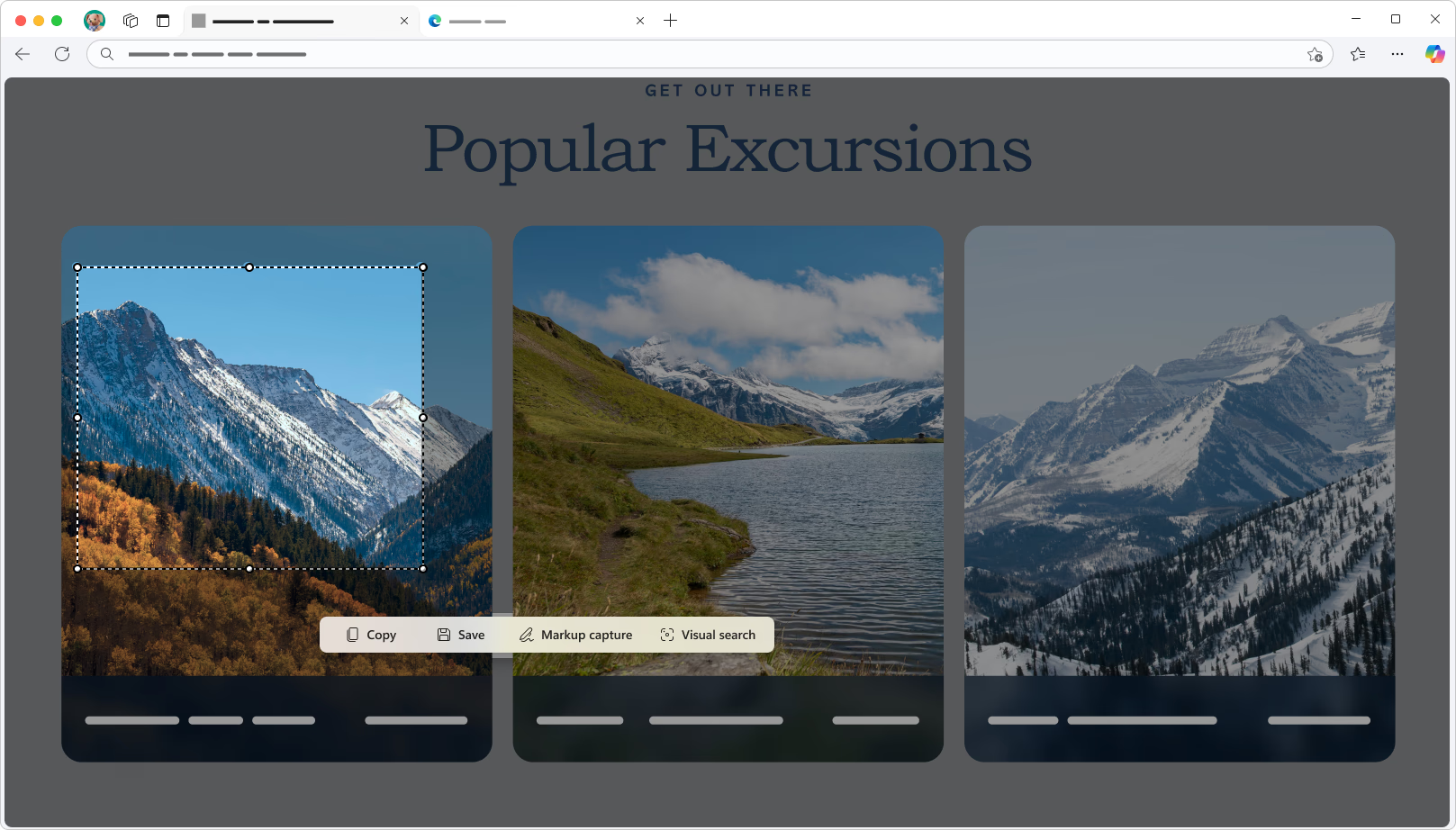
Easily take screenshots on your Mac with Microsoft Edge's built-in tool. Capture web content effortlessly while browsing, then edit and share. Save your captures directly to your device for easy access.


Download Microsoft Edge now
Designed to feel at home on a Mac
Ceistean cumanta
- Click the Download button at the top right of this page.
- Open Finder and locate the downloaded package.
- Double-click the installer or drag the package into your Applications folder.
- Open Launchpad, find Microsoft Edge, and double-click to launch it.
Yes. While newer versions of Microsoft Edge no longer support macOS 11, you can still download a compatible version (up to version 138) for Big Sur. This ensures you have a secure browsing experience while you plan to upgrade your device. For the best performance and latest features, we recommend updating to macOS 12 or later when possible.
- Ensure Microsoft Edge is installed. Open it from your desktop, taskbar, or application menu.
- Click the three dots ( … ) at the top right of the toolbar and select Settings.
- In the left menu, choose Default browser.
- Click Make default on the right.
Signing in to Microsoft Edge allows you to sync your data across devices effortlessly. This means your bookmarks, browsing history, saved passwords, and settings update automatically wherever you sign in with the same account. Benefits include:
- Seamless Browsing: Keep browsing across devices without interruption.
- Instant Access: Get your bookmarks, passwords, and autofill details on any device.
- Enhanced Productivity: Maintain a consistent setup—settings, extensions, and preferences stay the same.
- Secure Backup: Your data is safely stored in the cloud, ensuring it’s protected even if you switch devices.
- Install and Launch Edge: Ensure Microsoft Edge is installed. Open it from your desktop, taskbar, or application menu.
- Sign In: Click the profile icon in the top-left corner (this might display a default avatar or your initials). Choose your account from the list, or select Add new account if your account isn’t shown. Note: If you see Manage profile settings, you’re already signed in.
- Via Settings: Alternatively, go to Profiles > Sign in in the settings page, pick your account, and click Continue.
- Start Syncing: Finally, click Sign in to sync data. Once signed in, your favorites, passwords, history, extensions, open tabs, autofill entries (like your name, address, and phone number), payment info, and more will synchronize across all devices.
Note: Syncing favorites also brings along any saved collections or reading lists.
Microsoft Edge offers robust, multi-layered privacy and security protections to help you browse confidently. Features include:
- InPrivate Browsing: Keep your online activity private.
- Pop-up Blockers: Avoid unwanted interruptions.
- Tracking Prevention: Limit online tracking for a safer browsing experience.
- * Dh’fhaoidte gum bi diofar ghleusan ri làimh agus gun dèan iad rudan beagan eadar-dhealaichte a-rèir an uidheim, na margaid agus tionndadh a’ bhrabhsair.
- * Dh’fhaoidte gun deach susbaint na duilleige seo eadar-theangachadh le IF.